Why decide when you can just use SearchBoth.com. Cool split screen display actually makes this a useful site.


Why decide when you can just use SearchBoth.com. Cool split screen display actually makes this a useful site.
This may not be the most appropriate post or mobile application but it is a problem  that many of us who live, travel and work in the New York City area struggle with almost daily. Many days I find my self headed for the 2 or 3 train from downtown to mid-town and it would be really nice to relieve myself before the 15 minute subway ride. Well if you spend much time in NYC you know this can be a challenge, even if you are lucky enough to locate a restroom there is a high probability that the door is probably locked. Well the problem is being solved by Yojo Mobile and an application called MiZPee.
Good news… Page loads have been improved from ~27 seconds to ~15 seconds. I still have some tweaking to do and I am hoping to get under 10 seconds.
I am sure those of you who visit frequently have noticed that the site has gotten pretty slow.? The traffic is fairly high these days and I have some serious site optimization to do. The content I have been posting is media rich and that is causing some problems.
I came across a nice little tool that analyzes a web site and makes recommendations (check it out at http://www.websiteoptimization.com/services/analyze/).
Another tool that really helps you understand what is taking so damn long is the OctaGate SiteTimer and invaluable tool in troubleshooting slow page loads.
Here is another good article which offers some more generic WordPress tuning suggestions.
I will be working over the coming weeks to improve the overall performance of the site.
Perform your own Microsoft Exchange Health Check, a well done blog that provides all the insight you need to accomplish what many pay for.
Dougs Blog >> Exchange Server in the field : Run your own Exchange Server Health Check….
Byte and Switch – EMC – Data Domain Goes Public – Storage Networking News Analysis
Data domain priced to IPO at $15 opened the trading day at 20 and is currently trading as of 1:32 ET @ 23.10.
| DATA DOMAIN, INC. (NasdaqGM:DDUP) |
I had the pleasure of working with an application (referred to in the blog as APPX) that could use some serious TLC about a month ago. Apperently APPX is in wide use by isurance agencies and brokers. I 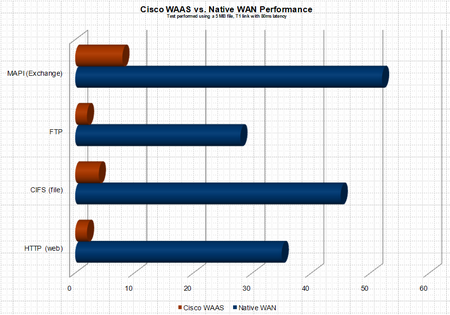 now know more about the interworkings of APPX than I want to know – and for the life of me can not figure out why the heck anyone would write an enterprise application ontop of the JET database, the answer I was given by the application developer is not everyone has MS SQL Server? OK – but if you are small enough not to have MS SQL Server (BTW – thats pretty freakin small) download MSDE it is free – or better yet why not use MySQL, Postgres, etc… anything but JET – ODBC, JDBC people it’s not 1972 :(. Here is how the saga began. A customer of ours was looking to remove file servers and print servers from 8 branch locataions. The articulated applications were standard CIFS shares and print services – a perfect fit for Cisco WAAS (Wide Area Application Services), a product which uses WAN accerleration technology and caching to remove WAN latency thus providing LAN like performane over the WAN.
The plan was to migrate the data from the 8 branch locations to a core location (the datacenter) and have the users access the data over the WAN. The customer would then be able to remove the server infrastructure and all associated management from the edge locations. Does not get any simpler than this, or so we thought.
A bit of background information. The depoloyment model for the CISCO WAAS gear was to use WCCP NOT inline cards to route the appropriate traffic through the WAE. Pretty early in the process we realized that the end users sitting in the remote location and accessing a SMB/CIFS share in core location were expeiencing huge delays from within the APPX, which was run from a network share and sort of a hyrbid client/server/web application. Fast forward 3 weeks, I finally show up on site to try and resolve a ghostly performance issue. At this point acceleration and caching of FTP, HTTP, CIFS, etc… had been fully vetted and verified as working properly. BUT APPX was still expreiencing significant performance issues. Immediately I began to believe it was an application specific issue – in the end the assuption was correct but lets explore how we identified the issue.
Step 1: Contact the application developer and understand exactly 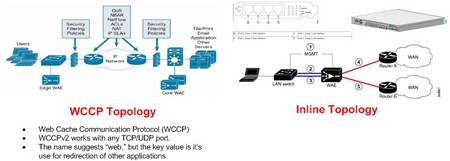 what the application does and the chronology of the steps.
The following are the notes/bullets taken away from the conversation with APPX developer:
- Documents produced and mdb files can in fact be stored on different paths – the applcation uses a .mdb (JET database – HINT #1 PROBABLE LOCKING ISSUE) and .dot word templates to create form letters.
- When APPX creates files it prefixes the documents with “s” or “m” – “S” refers to schedule and M refers to memo
- APPX also suffixes the document with a numeric value – this value is the record locator
- The path to templates and proposals are stored in proposal.mdb
- Document locataions are strored in APPX personalization
As I mentioned above the APPX installation including the .dot and .mdb files were stored on a network share.
Step 2: Plan of attack
NOTE: Currently (prior to the WAAS deployment) when a new template is created the APPX directory is robocopied to network shares at the 8 remote locations. The new process would be to use a login script to copy the APPX install to the local workstations when an change is made. Pre-positioning could be used in this case to increase the prerformace of the initial load. Not only will this solve the performance issue but it also represents a significant improvement to the currrent process. The automation of updating the templates using login scripts removes the robocopy responsibility from the IT staff and ensures that the users are always operating from the latest database and templates.
NOTE: reg key location for the APPX ditro directory – HKCU/Software/APPX/
Step 3: The actions taken to resolve the issue
Creation of scripts listed below to automate the required changes:
All scripts housed in centralized network location ie \\core\share\waas_appx_scripts.
The logon scripts are located at \\core\netlogon
Ultimately to increase the speed of APPX the APPX Word document templates and mdb lookup databases will be moved from \\core\share\appx\database to c:\appx\database on the users localhost.
These changes dramatically increased the performance of the APPX, the belief is that performance problems were due to jet database related locking and lock release issues that were worsened due to WAN latency. During the automation process I did in fact verify that locks are placed on mdb files on a fairly regular basis. Initially I was told by the application developer, that the mdb files are not changed and locks are not placed on these files but this is not the case. Interestingly enough the APPX folks stated that most users are going to a more distributed model vs. a consolidated model. After understanding the application architecture it is not hard to understand why.
The process going forward would be the following is the following:
NOTE: 7-Zip has also been installed on the \\core server and is required
NOTE: Once all the users have logged on and their reg keys modified the regedit command can be removed from the logon.bat script.
Script Details:
logon.bat:
rem update local APPX distro
@echo off
mkdir c:\appxload.tmp
copy \\core\share\waas_appx_scripts\appxload.exe c:\appxload.tmp
c:\appxload.tmp\appxload.exe -oc:\ -y
rem update APPX reg key
regedit.exe /s \\core\share\waas_appx_scripts\appx_redirect_to_C.regupdate_distro.bat
xcopy /e /y d:\share\appx d:\share\waas_appx_scripts\appx
“c:\program files\7-zip\7z.exe” a -sfx appx d:\vol15\waas_appx_scripts\appxappx_redirect_to_C.reg
Windows Registry Editor Version 5.00
[HKEY_CURRENT_USER\Software\APPX]
“Database Directory”=”c:\\APPX\\DATABASE\\”upappx.bat
@echo off
mkdir c:\appxload.tmp
copy \\core\share\waas_appx_scripts\appxload.exe c:\appxload.tmp
c:\appxload.tmp\appxload.exe -oc:\ -yregchg.bat
regedit.exe /s \\core\share\waas_appx_scripts\appx_redirect_to_C.reg
So that more detail than I thought I would write. Obviously the actual application is not listed in the blog, but if you are interested in that app please send me an Email rich@bocchinfuso.net. I would be more than happy yo share more of the detail with you. Also if you find any typos, etc… in the post please leave a comment.
BTW- The customer has now been running for about 30 days and they are happy with the performance.
So let me set the stage for this blog. I recently completed a storage assessment for a customer. Without boring you with the details one of the major areas of concern was the Exchange environment, I was provided with proem data from two active Exchange cluster member to be used for analysis. The proem data was collected on both cluster members over the course of a week at 30 second intervals – THAT’S ALOT OF DATA POINTS. Luckily the output was provided in .blg (binary log) format because I am not sure how well Excel would have handled opening a .CSV file with 2,755,284 rows – YES you read that correctly 2.7 million data points – and that was after I filtered the counters that I did not want.
The purpose of this post is to walk through how the data was ingested and mined to produce useful information. Ironically having such granular data point while annoying at the onset proved to be quite useful when modeling the performance.
First let’s dispense with some of the requirements:
OK – now that the requirements are out of the way let’s move on. I am going to make the assumption that the above software is installed and operational, otherwise this blog will get very, very long. NOTE: It is really important that you know the “sa” password for SQL server.
Beginning the process:
Step 1: Create a new data base (my example below uses the data base name “test” – you should use something a bit more descriptive)
Microsoft Windows XP [Version 5.1.2600]
(C) Copyright 1985-2001 Microsoft Corp.C:\Documents and Settings\bocchrj>osql -Usa
Password:
1> create database test
2> go
The CREATE DATABASE process is allocating 0.63 MB on disk ‘test’.
The CREATE DATABASE process is allocating 0.49 MB on disk ‘test_log’.
1> quitC:\Documents and Settings\bocchrj>
NOTE: This DATABASE will be created in the default DATA location under the SQL SVR install directory. Make sure you have enough capacity – for my data set of 2.7 million rows the database (.mdf) was about 260 MB.
Step 2: Create an ODBC connection to the database
A nice tutorial on how to do this can be found here: http://www.truthsolutions.com/sql/odbc/creating_a_new_odbc_dsn.htm
Two things to note:
- Use the USER DSN
- Use SQL Server Authentication (NOT NT Authentication) the user name is “sa” and hopefully you remembered the password.
Step 3: Determine relevant counters
Run the following command on the .blg file: log -q perf.blg > out.txt
This will list all of the counters to the text file out.txt. Next open counters.txt in you favorite text editor and determine which counters are of interest (NOTE: Life is much easier if you import a specific counter class into the database, create new a new database for a new counter class)
Once you determine the counter class e.g. PhysicalDisk run: log -q perf.blg | grew PhysicalDisk > counters.txt
Step 3: Import the .blg into the newly created database.
NOTE: There are two considerations here
Are the data points contained in a single .blg file (if you have 2.7 million data points this is unlikely)? If they are the command to do the import is fairly simple:
log perf.blg -cf counter.txt -o SQL:DSNNAME!description
If the data points are contained in a number of files make sure that these files are housed in the a directory. You can use the following PERL script to automate the import process (NOTE: This requires that PERL be installed – http://www.activestate.com/Products/ActivePerl/)
#!/usr/bin/perl -w
# syntax: perl import_blg.pl input_dir odbc_connection_name $counter
# e.g. – perl import_blg_pl#DO NOT EDIT BELOW THIS LINE
$dirtoget=”$ARGV[0]”;
$odbc=”$ARGV[1]”;
$counter=”$ARGV[2]”;
$l=0;opendir(IMD, $dirtoget) || die(“Cannot open directory”);
@thefiles= readdir(IMD);
closedir(IMD);foreach $f (@thefiles)
{
unless ( ($f eq “.”) || ($f eq “..”) )
{
$label=$l++;
system “log \”$dirtoget\/$f\” -cf $counter -o SQL:$odbc!$label”;
}
}
If the import is working properly you should see output similar to the following:
Input
—————-
File(s):
C:\perf_log – 30 second interval_06132201.blg (Binary)Begin: 6/13/2007 22:01:00
End: 6/14/2007 1:59:30
Samples: 478Output
—————-
File: SQL:DSNNAME!1.blgBegin: 6/13/2007 22:01:00
End: 6/14/2007 1:59:30
Samples: 478The command completed successfully.
Step 4: OK – The data should now be imported into the database. We will now look at the DB structure (table names) and run a test query. At this point I typically start using SQL Manager 2005 Lite but you can continue to use osql or Enterprise Manager (uggghhhh). For the purposes of cutting and pasting examples I used osql.
This is not a DB 101 tutorial but you will need to be connected to the database we created earlier.
Once connected run the following query (I cut out non relevant information in the interest of length):
C:\Documents and Settings\bocchrj>osql -Usa
Password:
1> use test
2> go
1> select * from subjects where type = ‘u’ order by name
2> go
CounterData
CounterDetails
DisplayToID
(3 rows affected)
1>CounterData and CounterDetails are the two tables we are interested in:
Next lets run the query to display the first 100 rows of the CounterDetails table to verify that the data made its way from the .blg file to the database
1> select top 20 * from counterdetails
2> go
SHOULD SCROLL 20 RECORDS
(20 rows affected)
1>quitStep 5: Determining what to query
Open counters.txt in your favorite browser and determine what you want to graph – there are a number of metrics, pick one you can get more complicated once you get the hang of the process.
e.g. When you open the text file you will see a number of rows that look like this – Take note of bold sections below, this is the one of the filters that will be used when selecting the working dataset
\test\PhysicalDisk(4)\Avg. Disk Bytes/Read
\test\PhysicalDisk(5)\Avg. Disk Bytes/Read
\test\PhysicalDisk(6 J:)\Avg. Disk Bytes/Read
\test\PhysicalDisk(1)\Avg. Disk Bytes/Read
\test\PhysicalDisk(_Total)\Avg. Disk Bytes/Read
\test\PhysicalDisk(0 C:)\Avg. Disk Write Queue Length
\test\PhysicalDisk(3 G:)\Avg. Disk Write Queue Length
\test\PhysicalDisk(4)\Avg. Disk Write Queue Length
etc…Once you determine which performance counter is of interest open Excel.
Step 6: Understanding the anatomy of the SQL query
SELECT
CounterData.”CounterDateTime”, CounterData.”CounterValue”,
CounterDetails.”CounterName”, CounterDetails.”InstanceName”
FROM
{ oj “test“.”dbo”.”CounterData” CounterData INNER JOIN “test“.”dbo”.”CounterDetails” CounterDetails ON
CounterData.”CounterID” = CounterDetails.”CounterID”}
WHERE
CounterDetails.”InstanceName” = ‘3 G:‘ AND CounterDetails.”CounterName”=’Disk Writes/sec‘ AND CounterData.”CounterDateTime” like ‘%2007-06-13%’
- The above query will return all the Disk Writes/sec on 6/13/2007 for the G: drive.
- In the above query I have BOLDED the VARIABLES that should be modified when querying the database. The JOINS should NOT be modified. You may add additional criteria like multiple INSTANCENAME or COUNTERNAME fields to grab, etc…. Below you will see exactly how to apply the query.
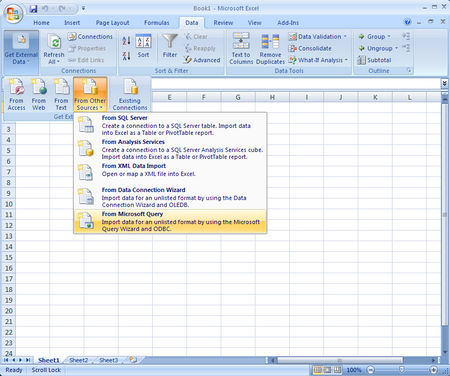
Step 7: Run the query from Excel (NOTE: Screen shots are of Excel 2003, the look and feel will be different for other versions of Excel)
Once you select “From Microsoft Query” the next screen will appear
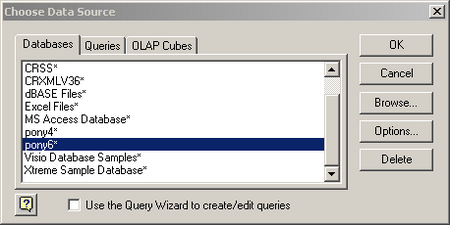
Select the DSN that you defined earlier. NOTE: Also uncheck the “Use the Query Wizard to create/edit queries. I will provide the query syntax which will make life much easier.Now you need to login to the database. Hopefully you remember the sa password.
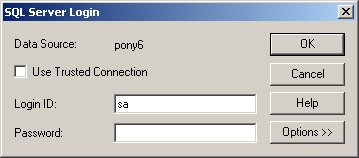
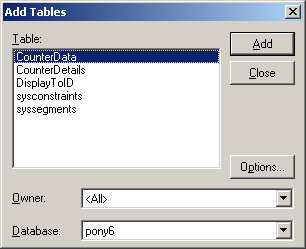
Once the login is successful – CLOSE the add tables window
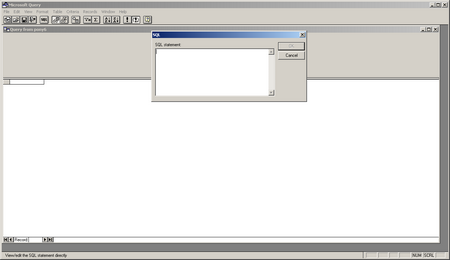
Now you will see the MS Query Tool Click the SQL button on the toolbar. Enter the SQL query into the SQL text box and hit OK. You will recite a warning – just hit OK and continue.
Use the query syntax explained above.
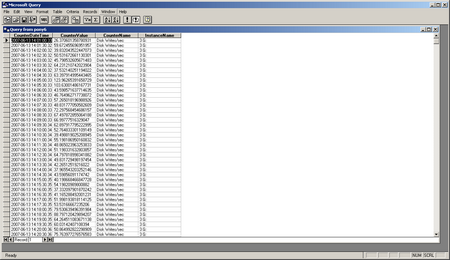
Once the query is complete it will return a screen that looks like this:
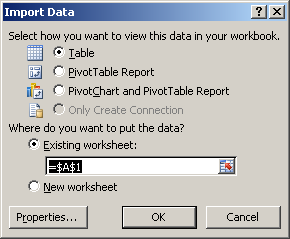
Now hit the 4th button from the left on the tool bar “Return Data” – this will place the data into Excel so that is can be manipulated:
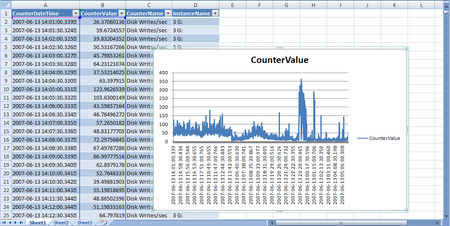
Once the data is placed into Excel you can begin to graph and manipulate it.
I hope this was informative, if you find any errors in the process please place a comment to the post.
Following my return from EMC World there has been some major activity in the trenches. The blog has suffered at the hands of the 24hr day. I suppose someone will eventually figure out that 24 hrs just does NOT work any longer. Nonetheless I am back with a vengeance and have two great blogs to post. In chronological order the first one has to due with troubleshooting a WAAS / application performance issue and the second one has to do with performance analysis and performance data mining. My plan is to actually publish the performance analysis information blog(freshest in my mind) followed by the WAAS / application document blog.
 8.10
8.10